How to scan sheet music into MuseScore and check the result
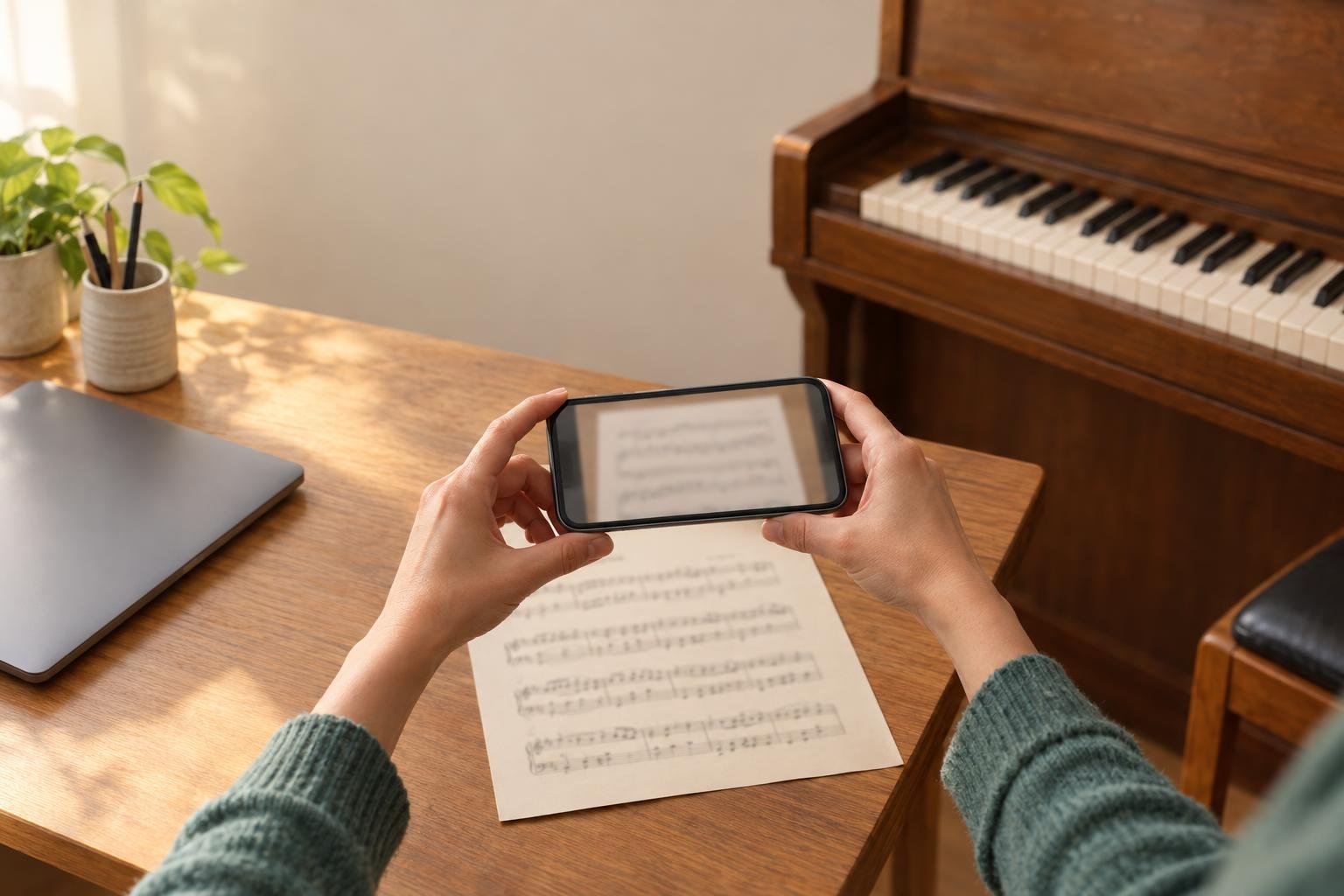
MuseScore doesn't read scans itself. To get a printed page into it, you run the page through a music recognition tool, save the result as MusicXML, and open that file in MuseScore with File > Open. In MuseScore 4, File > Import PDF sends you to MuseScore's online import page. For piano music you can also read a photo or PDF in PlayableNotes, check it by ear, and download the MusicXML.
The common routes all end the same way, with a MusicXML file you open in MuseScore and then proofread:
- MuseScore's own import, File > Import PDF in MuseScore 4, doesn't read anything inside the program. It opens MuseScore's import page on musescore.com in your browser, where you sign in, upload the PDF and get a score back to open in MuseScore. The reading behind it is done by Audiveris.
- Audiveris is free, open-source desktop software that reads printed music, lets you correct the recognition in its own window and exports MusicXML. Budget time to install and learn it.
- PlayableNotes reads two-staff piano music from a photo, screenshot or PDF in the browser, and you check it and play it back before you export. Reading costs 1 credit per line of music, and new accounts get 50 free credits.
Whichever you pick, expect to proofread. The MuseScore handbook's page on working with MusicXML files says it's "usually necessary to do some clean-up work."
Check whether you need to scan at all
If the piece is a well-known public-domain one, someone may already have done the work. The PlayableNotes library has more than 300 public-domain piano pieces by Bach, Mozart, Beethoven, Chopin, Joplin and others. Make a free copy of one in your account and download its MusicXML. Nothing has to be read, and the file opens in MuseScore with File > Open.
Easier versions of famous pieces, among them Für Elise, Canon in D and Ode to Joy, are in the easy piano arrangements, to play on the page and print.
For a short piece, typing the notes in can beat scanning, because a scan still has to be proofread. In MuseScore, select the first rest, press N, choose a length with the number keys (4 is an eighth note, 5 a quarter, 6 a half) and type the letter names A to G. Scanning earns its keep on longer pieces: the hymn arrangement in your church binder, the PDF a colleague sent you.
Get a clean image of the page
A cleaner photo or scan gives a better reading in any of these tools:
- One page per image. Don't photograph a two-page spread.
- Flat paper. Press the book open or use a scanner lid; curved staff lines near the spine are where readings go wrong.
- Even light and no shadow across the staves. Daylight from a window beats an overhead lamp.
- The whole page in frame, straight on, with a little margin around the edge.
- On a flatbed scanner, scan at 300 dpi in grayscale, or 400 dpi if the notes are printed small.
- If you have the publisher's PDF, use that. A digital PDF is sharper than a photo of a printout.
Handwritten music is a different problem. Audiveris's documentation says it supports printed scores only, and PlayableNotes doesn't read handwriting either. For a handwritten manuscript, type the notes into MuseScore yourself.
Choose the route that fits the music
Pick the tool by what's on the page.
| Route | What it reads | What it costs | Where you fix mistakes |
|---|---|---|---|
| MuseScore Import PDF | PDFs, via musescore.com in your browser | Needs a musescore.com sign-in; check the page for current terms | In MuseScore, after import |
| Audiveris | Printed music, from image files or PDFs | Free, open source | In Audiveris before export, then in MuseScore |
| Paid scanner apps (ScanScore, PlayScore 2, Sheet Music Scanner on MuseHub) | Printed music, from photos or PDFs | A license or subscription; MusicXML export may need a higher tier | In the app before export, then in MuseScore |
| PlayableNotes | Two-staff piano music: photos, screenshots, PDFs | 1 credit per line; 50 free credits for new accounts | In the browser before export, with playback |
For a choir score, a band part or anything beyond piano, use MuseScore's import, Audiveris or a paid scanner. PlayableNotes reads a treble and a bass staff together and nothing else. Piano music fits every route in the table, so the choice comes down to where you'd rather proofread. Our buyer's guide to piano sheet music scanners compares more options, and our ScanScore comparison puts its prices and staff limits next to ours.
Open the MusicXML in MuseScore
Once you have a .musicxml or .mxl file:
- In MuseScore, choose File > Open and pick the file. MuseScore opens MusicXML and compressed MusicXML directly; there's no separate import step.
- If the layout looks odd, check the import settings under Preferences > Import. You can choose whether to take the page size, margins, system breaks and page breaks from the file or use MuseScore's defaults.
- To clear leftover manual positioning, select everything with Ctrl+A (Cmd+A on a Mac) and press Ctrl+R (Cmd+R) to reset shapes and positions to MuseScore's defaults.
- If the title or composer didn't come across, add them with Add > Text > Title and Add > Text > Composer.
- Save as a MuseScore file (
.mscz) before you start editing, so your work no longer depends on the MusicXML.
Proofread it against the page before you edit
A wrong note found after you've transposed and re-voiced the piece is harder to trace back. Play the score back in MuseScore with the original page next to you, and check these in particular:
- time signature changes that aren't in the original
- tempo words and expression marks that never arrived
- dynamics, slurs and ties
- accidentals, especially courtesy accidentals and naturals
- triplets, other tuplets and dotted notes: one missed dot or triplet leaves the bar with the wrong number of beats
- repeats, first and second endings, and the title and composer
In our PDF to MuseScore worked example, we read the first movement of Clementi's Sonatina in C, Op. 36 No. 1, all 38 bars, and opened the MusicXML in MuseScore 4.7.5. All 333 written notes, their rhythms and both repeats came through. Before export we removed a change from 2/2 to 4/4 at bar 5 that the reading had added. In MuseScore we put back the missing tempo marking, Spiritoso. The composer credit and some expression details still needed attention.
Doing this in PlayableNotes
- Upload photos (one page per photo), screenshots or a PDF. On a phone, the "Take a photo" button opens the camera, and the same score is in your account when you sign in on the computer that runs MuseScore. You see the pages in order and check them before anything is read.
- Read them. That takes a minute or two and costs 1 credit per line of music, where a line is the treble and bass staff together. A hymn page is usually 4 or 5 lines; a page of piano music usually 5 to 7. Credits are counted per page before reading starts, you're never charged more than the count, and a reading that fails costs nothing.
- Check it by ear: press Play and follow the page as the notes highlight. When something sounds off, loop the passage or play hands separately. Fix a wrong note in the measure editor, describe the fix to the AI chat, or read a line again from a sharper photo.
- Download MusicXML and open it in MuseScore with File > Open, as above.
Everything after reading is free: editing, playback, practice links and every download. New accounts start with 50 free credits, and packs start at 100 credits for $10 (see pricing). There's no subscription, and credits never expire.
There's no plugin linking PlayableNotes and MuseScore: PlayableNotes writes the MusicXML, and MuseScore opens it. Reading covers two-staff piano music only, not vocal scores, ensemble parts, guitar tab or handwriting, and no reading is guaranteed perfect, so proofread as above.
If all you need is to print, transpose or simplify the piece, you can do that in PlayableNotes and skip MuseScore; see turning a piano PDF into an editable score.
Try it with a page of your own piano music at your projects; the 50 free credits cover several pages.
FAQ
Can MuseScore scan sheet music directly?
No. MuseScore 4 has no music recognition built into the program. File > Import PDF opens MuseScore's import page on musescore.com in your web browser, and the converted score comes back as a file you open in MuseScore. The other way is a separate recognition program that exports MusicXML, which MuseScore opens with File > Open.
What's the free way to get a PDF into MuseScore?
Audiveris is free, open-source software that reads printed music and exports MusicXML; expect to spend time installing it and correcting its output. For two-staff piano music, PlayableNotes gives new accounts 50 free reading credits, enough for several pages, and downloading MusicXML is free.
Can I import a photo of sheet music into MuseScore?
Not directly. MuseScore opens score files such as MusicXML and MIDI, not photos, so a photo has to go through a recognition tool first. PlayableNotes reads photos of piano music (one page per photo) and exports MusicXML, and Audiveris reads image files of printed music.
Can I scan sheet music and convert it to MIDI?
Yes. Once the score is in MuseScore, File > Export saves it as MIDI, and PlayableNotes downloads MIDI free after reading. To get music into MuseScore, though, use MusicXML. It carries the notation (clefs, key and time signatures, note values, ties, repeats), while MIDI records only the notes as they sound, so MuseScore has to guess at the notation.
Why does my imported score look different from the original?
MusicXML carries the notes, but not always the layout or every marking. Spacing and bars per line differ between programs, and recognition can miss tempo words, dynamics or the composer credit. Check Preferences > Import, reset positions with Ctrl+R, and proofread against the original.